How to Improve Email Load Speed: Complete Guide

Email load speed improves when you reduce image weight, simplify HTML, and test how emails render on mobile. Strong image compression, clean code optimization, and smart file size reduction help improve loading performance without hurting design quality.
Faster emails give subscribers a smoother reading experience, make CTAs easier to reach, and reduce frustration on slow connections. The best speed improvement strategy starts before sending, with lighter images, cleaner layouts, and tested templates that work across every major email client.
What Is Email Load Speed?
Email load speed is how quickly an email’s text, images, layout, and clickable elements appear after a subscriber opens the message.
Several factors shape this speed. It depends on image weight, HTML size, email client behavior, connection speed, device type, and template complexity. A single heavy image or a bloated template can drag down the entire experience.
Think of load speed as the first impression. If the message appears fast, readers stay. If it stalls, they leave.
Why Email Load Speed Matters
Readers scan emails in seconds. If your visuals stall, the message never lands. Speed shapes how people feel about your brand before they read a single word.
Slow emails create real costs for marketers. The reasons below explain why email load speed deserves attention in every campaign you build.
- Hidden messages: Slow-loading images can cover or delay your main point, so readers miss the offer.
- Weak mobile experience: Heavy emails struggle on phones, where many people read on slower data connections.
- Late CTAs: Buttons that load slowly feel hard to find and hard to tap, which lowers clicks.
- Lower engagement: Frustrated readers close slow emails, which can hurt opens and conversions over time.
- Professional feel: Fast, clean emails signal that your brand respects the reader’s time.
Email Load Speed vs Email Deliverability
People often confuse these two ideas, but they solve different problems. One affects the inbox journey, and the other affects the reading experience.
Deliverability decides whether your email reaches the inbox at all. Email load speed decides what happens after the reader opens it. They are different but connected through quality, engagement, and email design.
Large, image-heavy emails can create a poor user experience even when they do not directly block inbox placement. Litmus notes that large images can slow load times for subscribers and recommends avoiding image-only emails because filters and screen readers cannot easily interpret them without proper text.
What Slows Down Email Loading Performance?
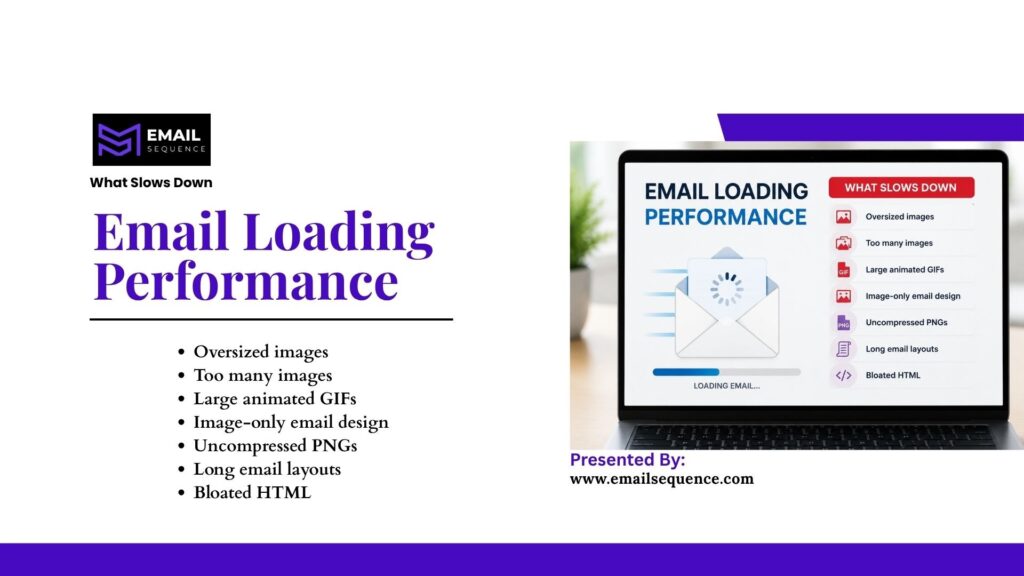
Slow loading performance usually comes from the total weight and complexity of an email, not one single mistake. Many small problems stack up until the email feels heavy.
Before you fix anything, you need to know what to look for. Common causes include:
- Oversized images
- Too many images
- Large animated GIFs
- Image-only email design
- Uncompressed PNGs
- Long email layouts
- Bloated HTML
- Unused code from drag-and-drop builders
- Too many columns or nested tables
- Heavy custom fonts
A faster email starts with fewer unnecessary assets and a cleaner structure.
How Image-Heavy Emails Create Problems
Image-heavy emails can look attractive in a preview, but they often create inbox problems. Some subscribers block images by default. Others see images load slowly on mobile.
When the headline, offer, and CTA live inside one big image, the email may look blank or confusing until that image loads. Screen readers also cannot read text inside images unless the sender adds useful alt text.
Use live HTML text for important copy. Keep images supportive, not essential.
Why Long Emails Can Load Slowly
Longer emails carry more weight by nature. Every extra section adds code, images, and rendering time, which slows the whole message.
Length affects more than speed. Many sections, products, banners, and graphics can delay loading and split the reader’s focus.
Shorter, focused emails load faster and guide readers toward one clear action. When you trim length, you often improve both speed and clicks.
Image Compression: The Fastest Email Load Speed Fix
Images usually create the biggest load problem, so image compression delivers the fastest win. Compressing images lowers total email weight while keeping the design sharp.
Litmus says compressing images is one of the best ways to decrease email file size. Litmus also recommends using fewer images and removing unnecessary GIF frames. These small changes add up to large speed improvement across a campaign.
Image Compression Best Practices
Email images should be built for inbox display, not uploaded straight from large camera files or design exports. A photo meant for print carries far more data than an email ever needs.
The habits below keep your visuals lightweight without sacrificing quality. Use them every time you add an image.
- Resize before upload: Match the image to its display size, not its original size.
- Compress JPG and PNG files: Shrink file weight with a trusted compression tool.
- Use JPG for photos: JPG handles detailed images at a smaller size.
- Use PNG only when needed: Reserve PNG for transparency or sharp graphics.
- Avoid huge backgrounds: Large background images add weight and often fail to load.
- Keep hero images light: Compress the main banner since readers see it first.
- Cut decorative graphics: Remove visuals that add no real meaning.
- Compress GIFs: Trim extra frames before placing a GIF in the email.
- Add alt text: Describe important images so blocked visuals still make sense.
- Check quality after compression: Make sure images stay clear, not blurry.
Recommended Image Size Rules
Exact limits change by platform and email type, so treat these as practical targets rather than strict universal rules. Smaller image files load faster in nearly every case.
A few platform guidelines help set a baseline. Mailchimp recommends a maximum image file size of 1 MB. Mailjet recommends keeping images under 200 KB where possible while maintaining a good text-to-image balance.
File Size Reduction for Faster Emails
File size reduction means lowering the total weight of an email. That includes images, GIFs, HTML, icons, and unnecessary code, not images alone.
A balanced approach matters here. You want a lighter email that still delivers every important detail and stays clear to the reader.
What to Reduce
Some elements add weight without adding value. Trimming them speeds up the email and sharpens the message at the same time.
The items below are safe to cut or shrink in most campaigns.
- Large hero images: Compress the main banner instead of using a full-size export.
- Repeated banners: Remove duplicate promotional graphics.
- Oversized product images: Resize product photos to their display size.
- Unused icons: Delete decorative icons that serve no purpose.
- Decorative separators: Replace graphic dividers with simple spacing.
- Large GIFs: Shorten or compress heavy animations.
- Long HTML blocks: Clean out bloated or duplicate code.
- Excess inline CSS: Keep only the styles you actually use.
What Not to Remove
Speed matters, but clarity and compliance matter more. Some elements must stay, even when you trim for weight.
Protect the parts of the email that readers and regulations depend on.
- CTA buttons: Keep every call to action that drives clicks.
- Legal footer details: Retain unsubscribe links and required disclosures.
- Accessibility text: Keep alt text and readable live text.
- Transactional details: Preserve order, receipt, and account information.
- Core branding: Keep enough brand identity to stay recognizable.
Code Optimization for HTML Emails
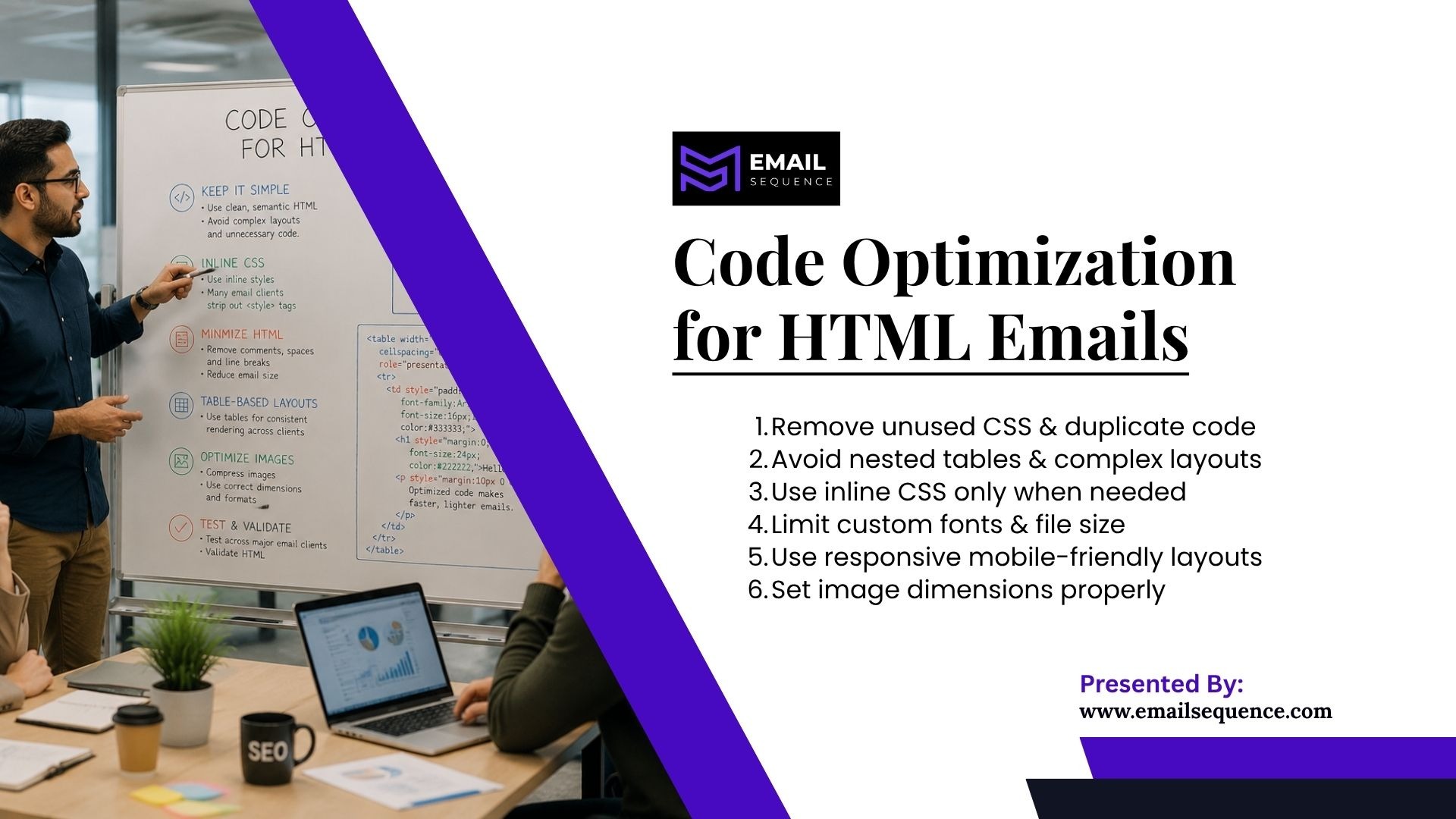
Even with compressed images, bloated HTML can slow rendering or break layouts in email clients. Code optimization keeps your templates clean and reliable.
Email code needs to stay simple because email clients handle HTML and CSS differently from web browsers. What works on a website may fail in an inbox.
Code Optimization Tips
Clean code renders faster and behaves consistently across inboxes. A lighter template also becomes easier to reuse and update later.
Apply the practices below to keep your HTML lean and dependable.
- Remove unused CSS: Delete styles that no longer apply to your layout.
- Avoid nested tables: Limit nesting so clients render the email faster.
- Keep layouts simple: Favor clean structures over complex grids.
- Use inline CSS where needed: Apply inline styles only where clients require them.
- Limit custom fonts: Use fewer fonts to reduce weight and display issues.
- Use responsive patterns: Build layouts that adapt to mobile screens.
- Cut duplicate code: Remove repeated blocks from copy-pasted content.
- Set image dimensions: Add width and height to prevent layout shifts.
- Skip base64 images: Avoid embedding large images directly in the code.
Email Load Speed Optimization Checklist
A checklist helps teams review performance before the campaign goes live. Use it during design, QA, and final approval.
| Optimization Area | What to Check | Why It Matters | Best Practice | Expert Recommendation |
| Image compression | Large JPG, PNG, and GIF files | Images often create most email weight | Compress before upload | Keep visuals sharp but lightweight |
| File size reduction | Total email weight | Heavy emails load slowly | Remove unnecessary assets | Keep only useful sections |
| Code optimization | Bloated HTML and unused CSS | Complex code can slow rendering | Clean templates regularly | Use simple, tested HTML |
| GIF usage | Large animated files | GIFs can become very heavy | Reduce frames and dimensions | Use GIFs only when they add value |
| Mobile layout | Slow mobile rendering | Many users open email on phones | Use responsive design | Test on mobile inboxes |
Optimize GIFs, Icons, and Product Images
GIFs, icons, and product grids often add weight without anyone noticing during design. These elements deserve a close review before you hit send.
GIF Optimization
Motion can help a reader understand a feature or offer. It can also bloat an email if you ignore the file size.
Use the guidelines below to keep GIFs useful and light.
- Use GIFs with purpose: Add motion only when it improves understanding.
- Shorten animations: Trim the length to reduce frame count.
- Remove extra frames: Cut frames that add no value.
- Reduce dimensions: Scale the GIF to its display size.
- Compress before upload: Lower the file weight first.
- Plan for a strong first frame: Some clients show only the first frame, so make it meaningful.
Product Image Optimization
Ecommerce emails often stack many product photos, which adds heavy weight fast. Smart choices here protect both speed and clarity.
Apply these tips to keep product emails light and effective.
- Resize to display size: Avoid uploading full-resolution catalog images.
- Show fewer tiles: Feature your best products instead of the full catalog.
- Use consistent dimensions: Match sizes for a clean, fast layout.
- Compress every image: Shrink each product photo before placement.
- Link to a landing page: Send readers to the site instead of loading the whole catalog.
How EmailSequence.com Can Help Improve Email Load Speed
Strong email load speed takes both clean design and consistent process. EmailSequence.com supports both, so your campaigns stay fast as they scale.
The platform focuses on cleaner, faster, and more effective email campaigns. The areas below show where that support makes the biggest difference.
- Template review: Spot heavy code and oversized assets in your templates.
- Automation cleanup: Keep reused sequences light and fast.
- Newsletter optimization: Balance design and speed in content-heavy emails.
- Transactional email tuning: Keep receipts and resets functional and quick.
- Performance tracking: Measure how campaigns perform after each change.
- Content structure improvement: Organize images and copy for faster loads.
- Sequence copywriting: Build messages that read well and load fast.
- AI-assisted planning: Plan cleaner workflows that improve subscriber engagement.
Conclusion
Email load speed shapes how quickly subscribers see and use your message. When emails load fast, readers reach your offer and your CTA without friction.
Image compression remains the fastest way to cut email weight, while code optimization keeps your HTML clean and easy to render. Smart file size reduction trims dead weight without removing the content that matters.
Real speed improvement comes from a mix of habits: lighter images, simpler design, mobile testing, and clean reusable templates. Build these steps into your routine, and every campaign loads faster by default.
Start with one audit today. Compress your heaviest images, clean your master template, and test on mobile. EmailSequence can support faster, clearer, and more effective email campaigns at every step.
Frequently Asked Questions
What is email load speed?
Email load speed is how quickly an email’s text, images, layout, and clickable elements appear after a subscriber opens it. It depends on image weight, HTML size, mobile connection speed, and email client behavior. Faster emails help readers reach your message and CTA without delay, which improves the overall reading experience and supports stronger engagement across devices.
How does image compression improve email load speed?
Image compression reduces the file weight of JPG, PNG, and GIF images so visuals load faster. Lighter images cut total email weight, which helps mobile users on slower connections see your message sooner. The goal is balance: shrink the file size while keeping images sharp. Always check quality after compressing so visuals stay clear and your design still looks professional.
What is code optimization in email design?
Code optimization means cleaning your email’s HTML and CSS so it renders faster and more reliably. You remove unused CSS, bloated HTML, duplicate sections, unnecessary wrappers, and unsupported code like scripts. Cleaner code helps email clients display your message correctly and makes templates easier to reuse.
What is the best file size for email images?
Exact limits vary by platform, but smaller files almost always load faster. Mailchimp recommends keeping images at 1 MB or smaller, and Mailjet suggests staying under 200 KB where possible. Treat these as practical targets for file size reduction, not strict rules.
Do large GIFs slow down emails?
Yes. Large GIFs hold many frames, so they can become very heavy and hurt loading performance. To keep them light, shorten the animation, remove extra frames, reduce the dimensions, and compress the file before upload. When motion adds no real value, use a static image instead.