How to Set Up Email Authentication: A Complete Guide
Email authentication verifies that your emails legitimately originate from your domain and remain unaltered during transit. It relies on three core authentication protocols—SPF, DKIM, and DMARC—which work together to protect your domain, improve email security, and increase inbox placement.
Setting up authentication involves configuring DNS records to validate sending servers, sign messages, and define handling rules for failed checks. Without proper authentication, receiving servers frequently reject emails or route them to spam folders. A correct setup ensures better sender validation, accurate domain verification, and superior deliverability performance.
Why Is Email Authentication So Important for Deliverability?
Without authentication, receiving servers treat your emails as suspicious. Internet service providers scrutinize unverified messages and routinely block them to protect their users. You must implement these systems to maintain a healthy sender reputation.
- .Block Scammers: Proper authentication stops scammers from sending fake emails (phishing and spoofing) that look like they came from you.
- Boost Deliverability: Verified domains are more likely to land in the inbox, not the spam folder, at major email providers like Gmail and Outlook.
- Protect Your Brand: A secure email setup shields your brand’s reputation by preventing criminals from using your domain for malicious purposes.
Email protocols verify sender identity and message integrity at every stage of the delivery process.
How Email Authentication Works
Every email server asks three questions before accepting your incoming message. These questions determine whether the message reaches the inbox or the spam folder.
1. Is the Sender Authorized? (SPF)
Receiving servers check if the IP address sending the email has permission to do so. They look up your domain’s DNS records to confirm this authorization. This is your first line of defense, like a security guard checking a driver’s ID at the gate.
It’s crucial for preventing basic email spoofing, where someone pretends to send an email from your domain.
2. Was the Message Altered? (DKIM)
The server inspects the message for a hidden cryptographic signature. This digital seal proves that no one tampered with the email content after it left your outbox.
Think of it as a wax seal on a letter; if the seal is broken, the contents can’t be trusted. Implementing DKIM is vital for ensuring your message’s integrity, which builds recipient trust.
3. What Should Happen If It Fails? (DMARC)
When an email fails the SPF or DKIM checks, the receiving server needs instructions. DMARC provides these instructions, telling the server whether to let the message pass, send it to spam, or reject it entirely.
This policy gives you control over your domain’s reputation and provides valuable reports on who is trying to send emails on your behalf, helping you identify security threats.
These protocols work together as a layered security system to protect your communications.
The Three Core Email Authentication Protocols
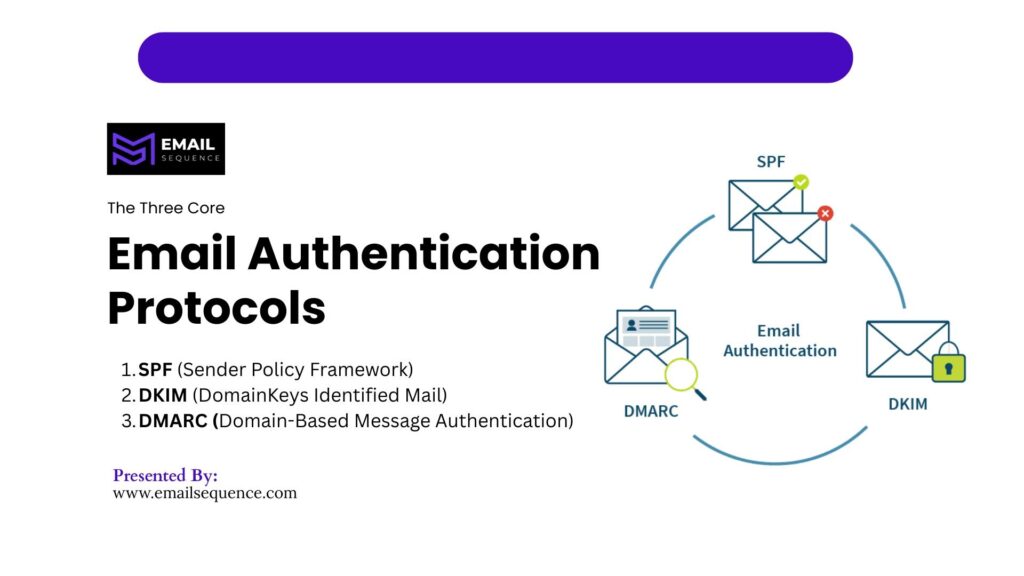
SPF (Sender Policy Framework)
SPF acts as a public guest list for your email domain. It tells receiving servers exactly which IP addresses and services possess authorization to send messages on your behalf.
- It defines authorized sending servers directly within your domain settings.
- You configure this protocol via a specific DNS TXT record.
- The system checks the sender IP against your approved list during the initial connection.
SPF verifies which servers can send emails for your domain safely and securely.
DKIM (DomainKeys Identified Mail)
DKIM functions like a tamper-evident seal on a physical envelope. It uses complex cryptography to ensure the message content remains exactly as you originally wrote it.
- The protocol adds a cryptographic signature to the header of every outgoing email.
- This signature ensures absolute message integrity during the transit process.
- The system uses a combination of public and private keys to validate the sender.
DKIM confirms emails were not modified in transit by any intermediary server.
DMARC (Domain-Based Message Authentication)
DMARC serves as the policy enforcement engine for your domain. It ties the previous two protocols together and provides a reporting mechanism for your email traffic.
- The framework defines a strict policy (none, quarantine, or reject) for unverified messages.
- It aligns SPF and DKIM to ensure the visible “From” address matches the authenticated domain.
- The system provides detailed reports about who is sending emails using your domain name.
DMARC tells servers how to handle failed authentication attempts systematically.
Step-by-Step: How to Set Up Email Authentication
Follow this exact order to avoid errors. Skipping steps or implementing them out of sequence will cause immediate deliverability issues.
Step 1: Identify Your Email Sending Sources
Before modifying any records, you must audit your entire email infrastructure. Missing a single sending source will cause legitimate emails to fail authentication checks.
- Catalog your primary email workspaces, such as Google Workspace or Microsoft Outlook.
- List all third-party email tools, including SendGrid, Mailchimp, and customer support platforms.
Step 2: Configure SPF Record
Your SPF record requires careful syntax to function correctly. You must consolidate all your sending sources into one single record to prevent DNS lookup errors.
- Add a new TXT record in your DNS management console.
- Include all approved sending services using the correct “include:” mechanisms.
- Avoid creating multiple SPF records, as this immediately invalidates the protocol.
Step 3: Set Up DKIM Signing
DKIM requires configuration on both your email provider and your DNS host. You must generate unique keys for every service that sends email for your business.
- Generate the necessary public keys from your specific email service provider dashboard.
- Add the corresponding DKIM TXT or CNAME record to your DNS settings.
- Return to your email provider and actively enable the cryptographic signing feature.
Step 4: Configure DMARC Policy
You must implement DMARC gradually to avoid blocking your own legitimate emails. Rushing to a strict policy without monitoring will harm your communication efforts.
- Start with a p=none policy to begin monitoring your email traffic safely.
- Move to a quarantine policy once you verify that legitimate emails pass authentication.
- Finally, shift to a reject policy to block all unauthorized senders completely.
Step 5: Verify and Test Authentication
Testing your configuration ensures you applied all records correctly. You must validate the setup before launching any major email campaigns.
- Check your email headers manually to look for “pass” results on all three protocols.
- Use dedicated validation tools to scan your domain for syntax errors and alignment issues.
SPF vs DKIM vs DMARC (Quick Comparison)
| Protocol | Purpose | What It Checks | Record Type |
| SPF | sender authorization | sending server IP | TXT |
| DKIM | message integrity | email signature | TXT |
| DMARC | policy & enforcement | SPF + DKIM alignment | TXT |
Most Common Email Authentication Mistakes (And Fixes)
This is where most setups fail. Many administrators make simple configuration errors that completely disable their email security framework.
Incorrect SPF Configuration
SPF syntax rules are incredibly rigid and unforgiving. A single misplaced character will break the entire authorization chain.
- Publishing multiple SPF records causes automatic evaluation failures.
- Missing third-party sending tools results in legitimate marketing emails landing in spam.
DKIM Not Enabled Properly
Adding the DNS record is only half of the DKIM setup process. You also need to ensure the sending server applies the signature to outgoing messages. Administrators frequently add the DNS keys but leave the signing feature disabled in the application.
DMARC Set to “None” Forever
A monitoring policy provides visibility but zero actual protection against spoofing. You must advance your policy to enforce security rules. Maintaining a “none” policy indefinitely means no enforcement and no protection against malicious actors.
Not Updating Records When Adding Tools
Your email infrastructure changes as your business adopts new software. Failing to update your records when you add a new platform, like a CRM, can cause immediate delivery failures and poor deliverability due to authentication failures.
Weak or incorrect setup reduces deliverability significantly across all major mailbox providers.
Final Thoughts
Email authentication is not optional—it’s the foundation of modern email deliverability. Without robust authentication protocols like SPF, DKIM, and DMARC, even your best campaigns will fail to reach the inbox.
A properly configured system is your first line of defense, ensuring maximum email security, consistent sender validation, and flawless domain verification across all platforms. Don’t let authentication failures undermine your outreach efforts.
Ready to lock down your domain and ensure your emails always land where they belong? Visit EmailSequence.com to get expert help with your email authentication setup and boost your deliverability today.
Frequently Asked Questions
What is email authentication in simple terms?
Email authentication is a system that verifies whether an email genuinely originates from your domain. It helps prevent spoofing and ensures that receiving servers trust your messages completely.
Do I need SPF, DKIM, and DMARC together?
Yes, all three protocols are required for proper email authentication. Each serves a distinct purpose, and using them together provides complete protection and significantly better deliverability.
How long does it take to set up email authentication?
Setup requires only a few minutes to a few hours, depending on your DNS provider and sending tools. However, full global propagation and verification may take up to 24 to 48 hours.
Why are my emails going to spam even after setup?
This issue occurs due to incorrect configuration, poor sender reputation, or missing alignment between your protocols. Authentication alone does not guarantee inbox placement if your sending practices remain poor.
What is the safest DMARC policy to use?
You should start with a p=none policy to monitor performance safely. Afterward, you must gradually move to quarantine and finally to reject to protect your domain fully from spoofing and unauthorized senders.